


New article
Recently updated
Creating and configuring skills

Who is this article for?
Administrators that need to create or configure a skill.
Administrator access is required.
Skills automatically assign documents, learnings and audits to users, with each skill configuring specific requirements such as mandatory or optional items.
1. Creating a skill
To create a new skill:
- In the Skills module, click Create on the top right.
- Fill in the initial settings.
The User Type field indicates which roles can have this skill (for example, a skill only for employees and not contractors).
- Click Save.
After saving, you can see the subpanels for each attachable assignment, such as documents, audits and learnings.
2. Adding items to a skill
To add documents, audits or learnings to your skill:
- Click Select to add an item to this skill.
- Search for your document and tick the box.
- Click Select.
3. Configuring item requirements
To configure the requirements for an item:
- Click Configure to specify the requirements for this document.
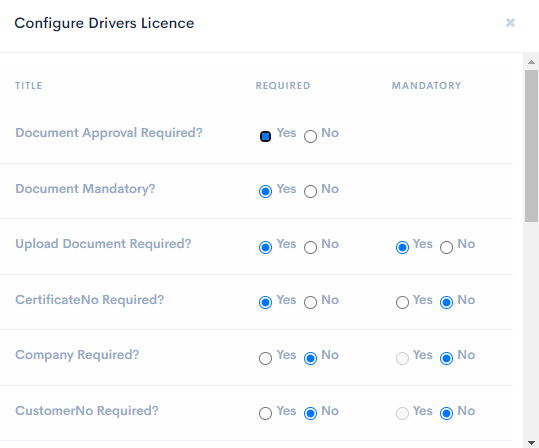
The configuration options determine the following requirements:
- Document Approval Required – when set to Yes, this document must be approved by a specific role (for example, a manager)
- Document Mandatory – when set to Yes, this document must be uploaded and approved to be compliant
- Upload Document Required and Mandatory – when Required is set to Yes, a field to upload a file appears; when Mandatory is set to Yes, that field must have a file attached to submit
- Review / Expiry Date Required and Mandatory – when Required is set to Yes, a field to add an expiry date appears; when Mandatory is set to Yes, that field must have a date selected to submit (the document will expire and require resubmission on this date)
- Allow Company Approval – when set to Yes, if a contractor employee uploads this, their company must approve it first
- View History – when set to Yes, allows viewing the historical uploads
For fields not listed above, Required means a field for it appears, and Mandatory means that field must be filled.
Important: Making an item mandatory and assigning it to users will immediately make them non-compliant.
4. Understanding priority when multiple skills share items
If two skills have the same document with different mandatory settings, and both skills are assigned to the user, the Mandatory = Yes setting takes priority.
For example, if Skill A has a driver's licence document set to Mandatory = Yes, and Skill B has the same document set to Mandatory = No, the document will be mandatory for any user assigned both skills.
5. Assigning skills to users
You can assign skills to users in two ways:
- Use the Users panel within the skill configuration
- Open specific users' profiles and add the skill directly there